This page will take you through the process of creating an account and starting an online passport application.
It also covers troubleshooting advice and support for managing your account.
To create an account, you must:
be aged 18 or over
provide your personal details
verify your email address
set up multi-factor authentication (MFA).
MFA adds an extra layer of security. It makes it harder for cybercriminals to take over your account. With MFA, even if someone guesses or steals your password, they won't be able to access your account without a second form of verification.
When registering, you can choose your MFA method:
Passkey, which uses secure device-based authentication, like fingerprint, facial recognition, or a PIN
verification codes sent to your email or mobile number.
You can’t change your login email address after you create an account. Instead, you’ll need to create a new account with a new email address.
To update your mobile number or delete your account:
If you enter the wrong email address or password at login 3 times in a row, your account will be locked for 5 minutes. This is to protect your account.
If you're renewing your passport, contact us to get a pre-filled form posted to you.
Setting up MFA for a new account
If you're setting up an AusPassport account for the first time, setting up MFA is part of that process. MFA helps protect your account by making it harder for someone else to access it, even if they know your password. You can choose one of two MFA options:
Passkey (recommended) a secure way to sign in using your device's built-in security features, like fingerprint, facial recognition, or a PIN
verification codes sent to your mobile number or email address.
Passkey
Passkey is a safer alternative to passwords and helps protect against phishing and scams. You should only create passkeys on a device that you don't share with anyone else.
Passkey uses the security features on your phone, computer or tablet, such as your fingerprint or facial recognition or a PIN.
When you create a passkey, it's saved on your device or website browser. The next time you sign in, your device will ask you to confirm it's you, using your fingerprint, face, or a PIN.
You will still need a password to set up your AusPassport account.
Passkeys can be synced across devices using a password manager like iCloud Keychain or Google Password Manager.
Important: If your passkey isn’t synced, it will only work on the device or browser where it was created. If you plan to use multiple devices (like your phone and laptop), make sure your passkey is synced before choosing passkey. This helps avoid sign-in issues later.
If you can't access your passkey (for example, if you lose your device or it's not synced), you'll need to contact us so we can reset your account.
We recommend adding your mobile number and a secondary email address, different to the one used to set up your account. We'll send the unique authentication code to either your mobile number or your email address. You can't add these afterwards.
Your verification code will expire after 3 minutes. After this time, you’ll need to request a new one. If you don't receive your code, you can also request a new one.
If you’re overseas, we recommend using passkey as your MFA option, or adding a secondary email address in case you can’t receive an SMS in the country you’re in.
Using the email address of your existing account means you'll be able to see your account information, including any passport applications in progress.
Reporting a security breach of your account
If you receive an MFA code you didn’t request, ignore it. If you think someone has accessed your account without permission, you should reset your password and contact us. If you’re overseas, contact your nearest Australian embassy or consulate(Opens in a new tab/window).
We may want to know:
when you think your account was compromised, and how
when you last signed in to your account
whether you’ve shared your AusPassport login email address or password with someone else.
We'll never ask for your email address or password via email, SMS, or direct message on social media.
Starting a new application
To start a passport application, log in to your AusPassport account and select 'Start application'.
You have 14 days to complete the online form once you start. After 14 days, it will be deleted from the system, and you'll need to start again. We'll send you reminder emails 7 days and 2 days before your application is due to be deleted.
Once you’ve completed the online form, you’ll need to download it and print it. You'll then need to lodge it at a participating post office and pay the passport fee.
Saving and resuming your application
Your application is automatically saved each time you complete a page of the online form. This means you can resume it later if needed.
To resume your application, log in to your AusPassport account. Under 'Resume where you left off', select the relevant application in the 'Application for' column. This will open the application, and you can continue to complete your details.
If you need to make changes to a completed online form, you'll need to start a new application. There's no limit to the number of applications you can create.
Deleting an incomplete application
You can delete any incomplete application and start again.
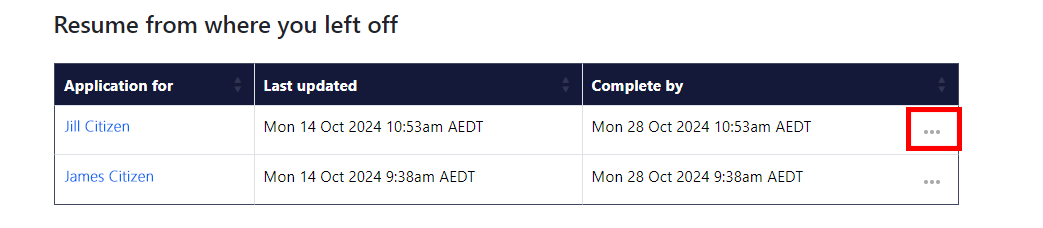
Under the 'Resume from where you left off' section, select the menu button next to the application you want to delete.
The 'Resume from where you left off' section in the AusPassport account dashboard.
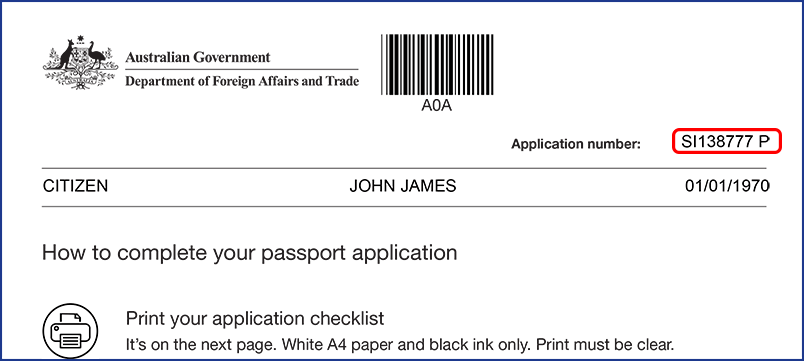
Printing your application checklist
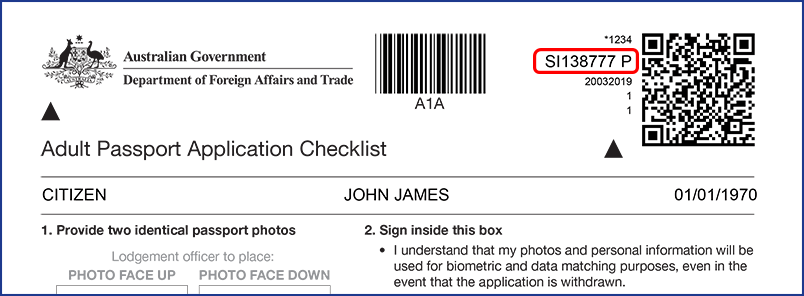
If you're applying for an adult passport in Australia using our online portal, the online form will generate an application checklist. This checklist includes some of your personal details. It also includes documents you need to take with you when lodging your passport application.
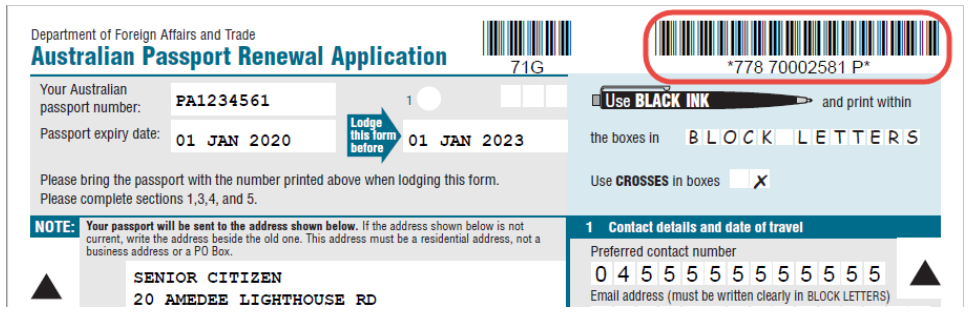
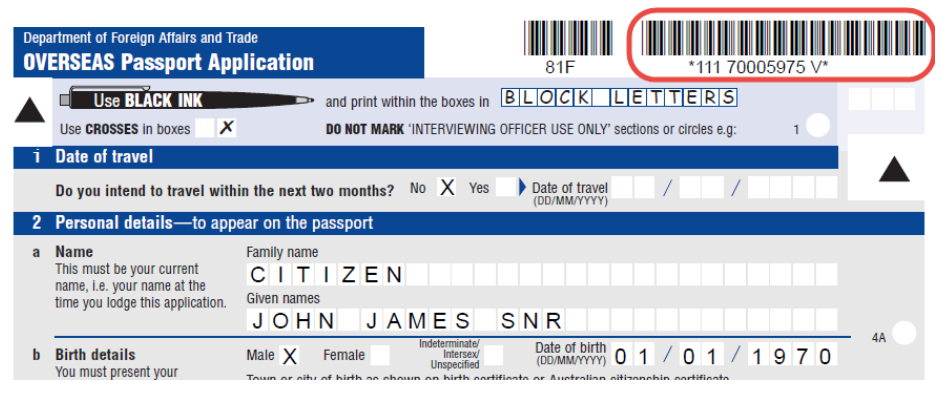
If you're applying for a child passport or you live overseas, the system will generate an application form. The application form looks like an ordinary paper application form.
All applications must be lodged in person at a participating post office(Opens in a new tab/window). This means, even if you complete an online form, you'll still need to print it and lodge it at a post office.
Once you lodge your application in Australia and it's under assessment, the record of responses and application checklist will no longer be available in your account.
Saving the record of responses
All the details you enter into your online application, including all declarations, are saved as a PDF called the record of responses.
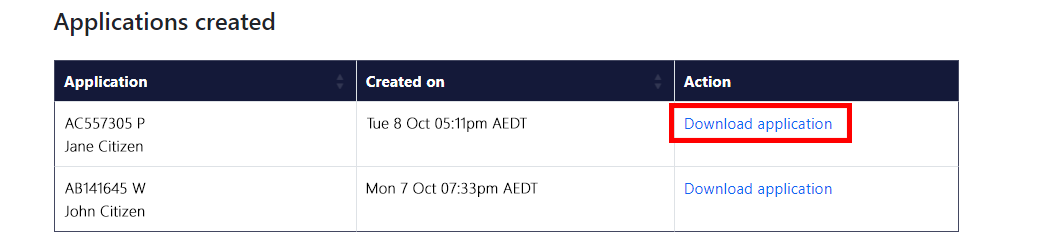
You can download the record of responses by choosing 'Download application' under the 'Applications created' section on the dashboard.
The 'Applications created' section in the AusPassport account dashboard.
Once you've lodged your passport application, there are 2 ways you can track the progress of your application:
1. Log in to your AusPassport account
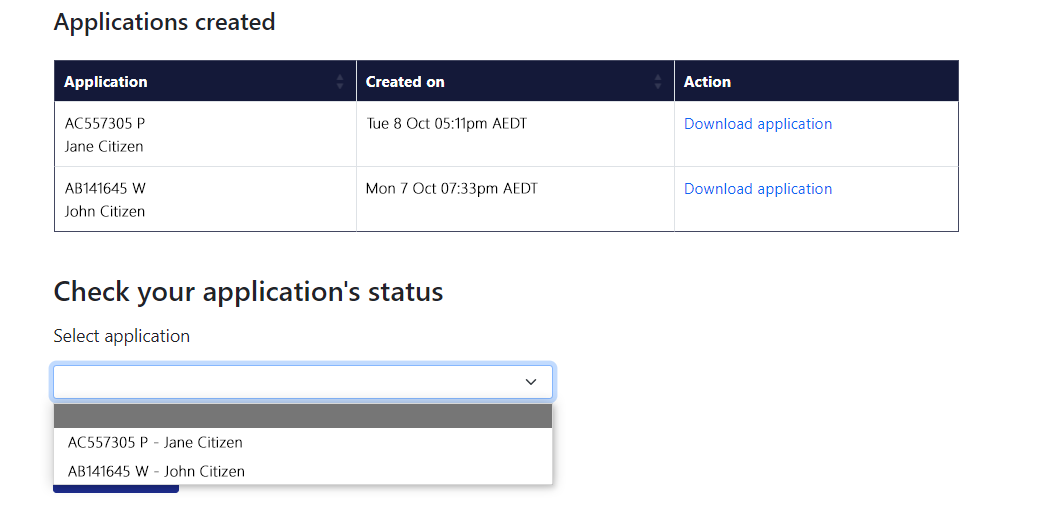
Log in to your account and go to the 'Check your application's status' section on the dashboard.
Use the drop-down menu to find the application you wish to view. Then select 'Check status'. Your application's status will appear on screen.
The 'Check your application's status' section in the AusPassport account dashboard.